
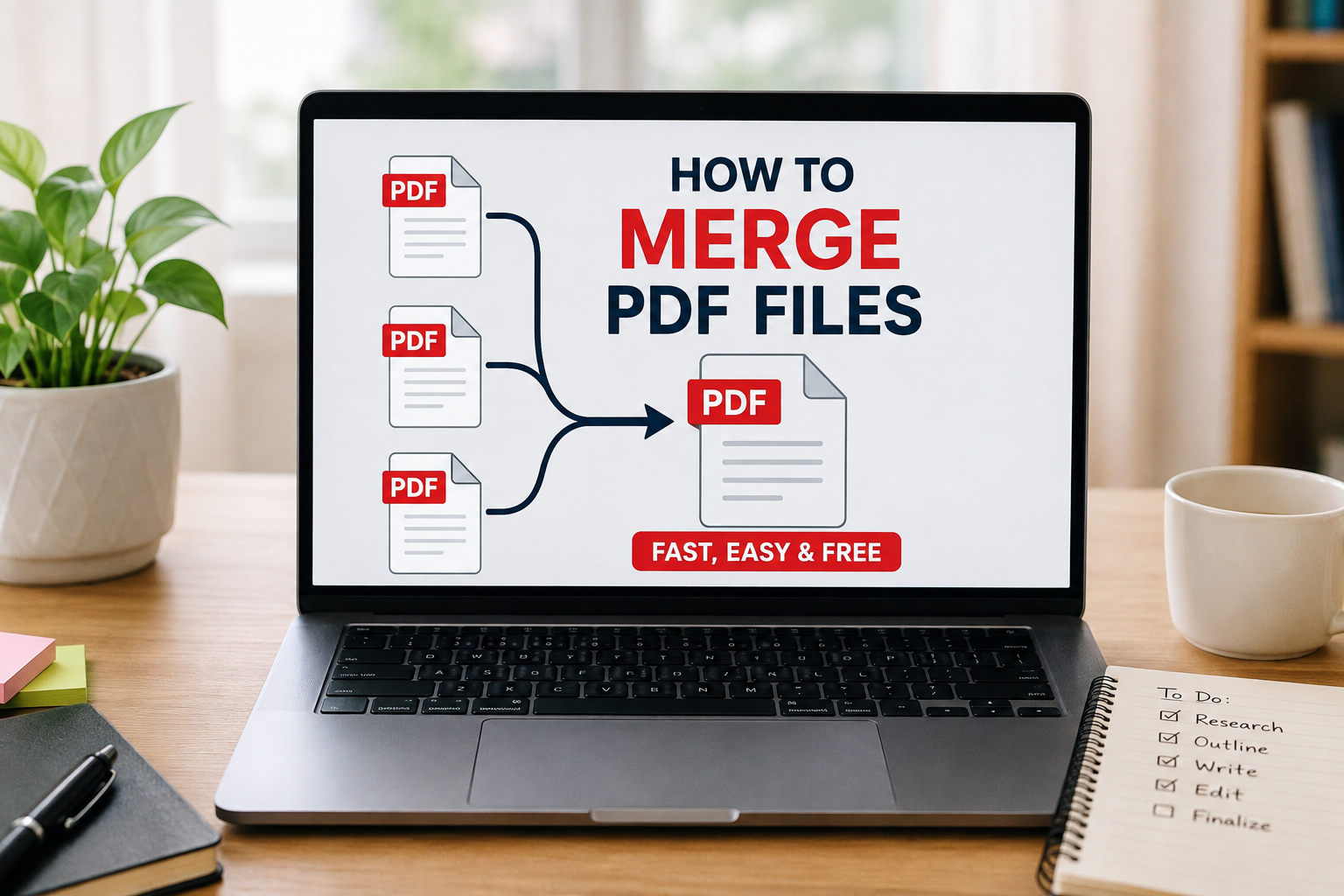
How to Merge PDF Files Quickly and Safely (Step-by-Step Guide)
You just finished compiling a major research project. Your cover page, the main essay, and a scanned reference chart are all saved as separate PDF files on your desktop. When you go to submit the assignment, you notice the upload portal only allows a single file attachment.
This is a common hurdle that stops many students and professionals right at the finish line. Luckily, combining multiple documents into one is a simple process. You do not need to rewrite your document or figure out complex software to get everything into a single file.
This tutorial will show you exactly how to merge PDF files using free, reliable tools on any device. You will learn how to arrange pages in the correct order, navigate different operating systems, and fix common errors. By the end of this guide, you will be able to confidently stitch documents together without relying on expensive software.
When Should You Merge PDF Files?
Combining files is highly useful in most academic and professional scenarios. School portals, such as Canvas or Blackboard, often restrict submissions to a single attachment to streamline grading. Merging your files ensures the professor receives your entire assignment in one organized package.
Job applications and corporate onboarding portals also frequently restrict attachment quantities. If you are uploading a resume, cover letter, and a portfolio of your past work, merging them prevents you from having to choose which document to leave out. Additionally, sending one complete file via email looks far more professional than attaching six scattered documents.
However, you should avoid merging PDFs when the files contain vastly different security settings. If one document requires a password and another is meant for public viewing, combining them can complicate who can open the final file. You should also skip merging if combining the files pushes the final document over a strict upload size limit.
Understanding PDF Merging
PDF merging works by taking the underlying code of multiple files and binding it together sequentially. When you use a merging tool, the software creates a brand new document that acts as an envelope for your original pages.
Unlike compressing a file, merging is typically a lossless process. This means your text, images, and formatting will look exactly the same in the combined file as they did in the separate files. The original quality is perfectly preserved.
The most important concept to understand about merging is file size addition. If you merge a 2-megabyte document with a 3-megabyte document, your new file will be roughly 5 megabytes. Because merging stacks the data, you may need to compress the final document if it becomes too large to send.
What You’ll Need
Before starting, gather the following items:
- An active internet connection (if using web-based tools).
- The original PDF files you wish to combine.
- A desktop computer, laptop, or smartphone.
- A standard web browser (Chrome, Safari, Firefox, or Edge).
Step-by-Step Guide
There are multiple ways to combine documents depending on your device and preferences. Web-based tools work universally, while Mac users have a powerful tool built directly into their operating system.
Method 1: Using a Free Web Tool (Universal)
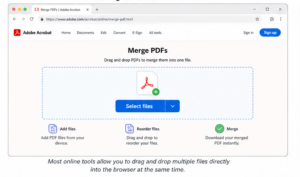
Online tools are the fastest way to merge files because they handle the heavy processing on their servers. Adobe Acrobat Online provides a secure, reliable merging tool that works on Windows, Mac, and mobile browsers.
- Open your browser and visit Adobe Acrobat Online. Navigate to their free “Merge PDFs” tool. Using a reputable company ensures your uploaded data is handled securely and deleted promptly.
- Upload your files. Click the Select files button and locate the PDFs on your computer. You can also drag and drop multiple files directly into the browser window at the same time.

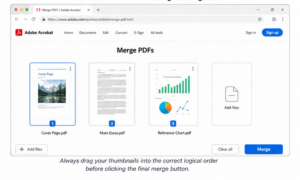
- Arrange your pages. Once uploaded, the tool will display thumbnail images of your files. Click and drag these thumbnails to put the documents in the correct order.
- Click “Merge.” The website will process the documents and bind them together. This step usually takes only a few seconds.
- Download the final file. Once processing finishes, click Download and save the file with a clear new name, such as Final_Combined_Project.pdf.
Method 2: Using Mac Preview (For Apple Users)
If you own a Mac, you do not need the internet to merge a PDF. The built-in Preview application includes a fast, drag-and-drop merging feature.
- Open your first PDF in Preview. Double-click the file you want to act as the beginning of your document.
- Open the sidebar. Click the View menu at the very top of your screen, then select Thumbnails. A sidebar will appear on the left showing the pages of your document.
- Drag and drop the second file. Locate your second PDF file on your desktop or in your Finder window. Drag that file’s icon directly into the thumbnail sidebar of the first document.
- Arrange and save. You can drag the newly added pages up or down in the sidebar to reorder them. When you are satisfied, click File and then Export as PDF to save your newly merged document.
Real-World Example
Imagine you are applying to graduate school. The university portal clearly states: “Upload your official transcripts, personal statement, and letter of recommendation as a single document.”
You have your personal statement saved from Microsoft Word, a scanned transcript from your registrar, and a downloaded letter from your professor. If you try to upload them right now, the portal will only accept the last file you click.
To solve this, you open a trusted web merger. You upload all three files and use the thumbnail view to place the personal statement first, the transcript second, and the recommendation letter third. After a few seconds, the tool outputs a single file. You open it to double-check that the pages flow logically. Everything looks perfect, and you successfully submit your application.
Alternative Methods
If standard merging tools do not fit your specific workflow, you can try these alternative approaches.
Alternative 1: Combine Files in Microsoft Word
If you have not yet exported your work to PDF, you can combine everything directly inside a word processor. You can insert images of your scanned documents directly into a Word file before saving the whole thing.
- Advantages: Gives you absolute control over page numbering and headers across the entire document.
- Disadvantages: Inserting PDFs into Word can sometimes ruin the original formatting or lower the image quality.
- Best use case: Creating visually cohesive reports where you need to add consistent text over top of the imported pages.
Alternative 2: Create a ZIP Folder
Instead of binding the pages together, you can place all your separate PDF files into a compressed ZIP folder.
- Advantages: This keeps the files completely separate, allowing the receiver to organize them however they prefer.
- Disadvantages: Many school and job portals explicitly reject ZIP files for security reasons.
- Best use case: Emailing multiple large PDFs at once to a colleague who needs to edit the individual files separately.
Common Mistakes
| Mistake | Why it happens | How to avoid it |
|---|---|---|
| Overwriting the original file | Saving the merged version with the exact same name as one of the originals. | Always add “_Merged” or “Complete” to the end of your new filename. |
| Ignoring the page order | Uploading files in a random sequence and clicking merge immediately. | Always review the thumbnail layout before hitting the final merge button. |
| Merging locked files | Attempting to combine a document that requires an open password. | Unlock and re-save the restricted file before trying to combine it with others. |
Troubleshooting
| Problem | Possible Cause | Solution |
|---|---|---|
| File size too large to upload | Combining the files added their sizes together, exceeding portal limits. | Run the newly merged file through a PDF compression tool to shrink it. |
| Pages are upside down | A scanned document was originally saved in the wrong orientation. | Use the tool’s rotate button on specific thumbnails before clicking merge. |
| Tool refuses to upload file | One of your files is corrupted or is not actually a PDF. | Re-export the problematic file from its original program as a fresh PDF. |
| Tool asks for a password | Your original document has restricted editing or printing permissions. | You must enter the owner password to unlock the file before merging. |
| Bookmarks disappeared | Free web tools often strip out navigation links during the merge process. | Use professional desktop software like Adobe Acrobat Pro to retain bookmarks. |
| Different page sizes | You merged a standard letter-size document with a large presentation slide. | Most PDF readers adjust automatically, but you can “Print to PDF” to standardize sizes. |
Tips and Best Practices
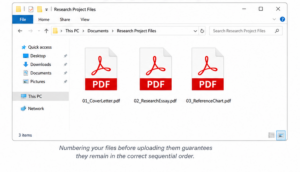
Professionals handle documents with a focus on organization and naming conventions. Before you even open a merging tool, place all the files you want to combine into a single folder. Rename them with numbers at the beginning, such as 01_CoverLetter.pdf and 02_Resume.pdf. This forces your computer and the merging tool to sort them alphabetically, saving you time.
Always maintain a dedicated backup folder for your original, unmerged files. If you spot a typo on page four of your merged document, it is much easier to fix the original separate file and re-merge, rather than trying to edit the massive combined document.
Finally, develop the habit of scrolling through the final document before you attempt to upload it. Catching a blank page, an upside-down scan, or an out-of-order document early saves you from stressful, last-minute resubmissions.
Frequently Asked Questions
Does merging PDFs reduce their visual quality?
No, the merging process is generally lossless. The software simply takes the existing data from your files and places it into a new digital envelope in sequential order. Your text and images will look exactly as sharp as they did in the original separate documents, provided you do not also apply a compression setting.
Is it safe to use online PDF merging tools?
Yes, provided you use reputable platforms. Major services like Adobe Acrobat, Smallpdf, and iLovePDF use secure, encrypted connections to protect your data. They also automatically delete your uploaded files from their servers within an hour or two. However, use offline desktop software for highly sensitive legal or medical information.
Can I merge PDF files directly on my phone?
Absolutely. You can use your smartphone’s web browser to access the exact same online merging tools you would use on a computer. Both iOS and Android handle PDF uploads easily through their respective file managers. There are also dedicated mobile apps available in the App Store and Google Play for this purpose.
Why is my newly merged file so incredibly large?
PDF merging is an additive process. If you combine three files that are 5 megabytes each, your final document will be approximately 15 megabytes. Because the data stacks up, it is very common to exceed upload limits after merging. You will likely need to run the final document through a compressor.
Can I un-merge files after I combine them?
You cannot click a simple “undo” button once the file is downloaded, but you can use a PDF Splitting tool to separate the pages again. This extracts specific pages and saves them as new, individual documents. This is exactly why you should always keep a backup copy of your original files.
How do I fix a single page that is upside down?
Most online merging tools and desktop applications feature a rotation tool. When you are looking at the thumbnail view of your uploaded files, look for a small circular arrow icon hovering over the page. Click it to rotate the specific page 90 degrees until it is perfectly upright before merging.
Can I merge a Word document directly with a PDF?
Most standard PDF merging tools require all uploaded files to already be in the PDF format. If you try to upload a .docx file alongside a .pdf, the tool will likely reject it. You must open Microsoft Word, save your document as a PDF first, and then combine the two files.
Is there a limit to how many files I can merge at once?
This entirely depends on the specific software or website you are using. Most free online tools limit you to merging between 20 and 50 files at one time, or enforce a maximum combined file size of 100 megabytes. If you need to merge hundreds of files, you will need premium desktop software.
Conclusion
Hitting an attachment limit is a minor roadblock, not a dead end. By understanding how PDF merging works, you can quickly organize your documents for any digital submission.
Whether you rely on a quick online tool or your computer’s built-in software, the process takes only a few moments. Remember to carefully arrange your page order before finalizing the merge, and always save your combined document with a brand-new name.
Take a moment to check your most recent multi-file projects. Try combining them into a single, polished document to see how much cleaner your digital workspace becomes. Explore our other tutorials to learn more ways to master your digital workflow.
Disclaimer: All Biographies and Contents Published on 9jaEntHub are for Knowledge purposes; However, Please Don’t Hesitate to Reach Out to Us for Any Corrections, Suggestions, or Copyright Infringement!! Contact Us Here.